How to password protect Chrome
Short answer: Chrome doesn’t ask for a password when it opens. The quickest way to add one is a lock extension such as Lock My Profile; the strongest is giving each person their own account on the computer. Many people use both.
Does Chrome have a password option?
Not for opening the browser. Chrome lets you create several profiles and sign in with a Google account, but neither asks for a password when someone opens Chrome on your computer. Signing out of your Google account doesn’t help either: your open tabs, history and sites where you’re still logged in stay on the computer.
Option 1: a separate account on your computer
If several people share the computer, the most secure setup is one account each in the operating system. Chrome keeps each account’s data apart, and nobody can open yours without the computer password.
- Windows: Settings › Accounts › Other users › Add account.
- macOS: System Settings › Users & Groups › Add User.
The downside: everyone has to switch accounts, and it doesn’t help when someone uses the computer while you’re still logged in.
Option 2: a lock extension (the quickest)
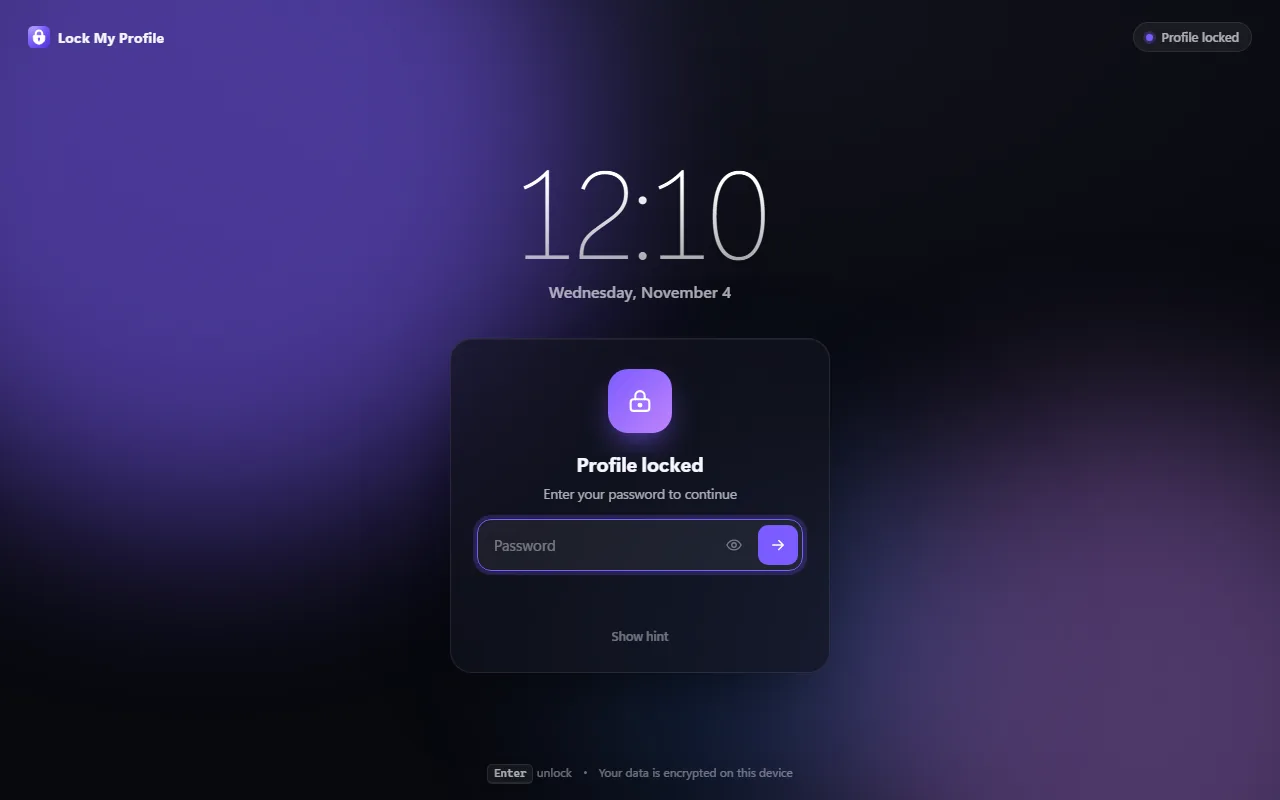
A lock extension puts a password screen in front of Chrome. This is how to do it with Lock My Profile, which is free and keeps everything on your device:
- Install Lock My Profile from the Chrome Web Store and click its icon in the toolbar.
- Create your password. Add a hint or a recovery question in case you forget it.
- Click Lock now or press Ctrl+Shift+L. Every tab is covered until you type the password.
- In Automation, turn on When Chrome starts so it asks for the password every time Chrome opens, and choose a time for Lock after inactivity.
- In Security, keep Block internal pages on, so nobody can turn the extension off from the extensions page while it’s locked.
Only want to protect some sites?
You don’t have to lock the whole browser. In Protected sites, add the sites you want to keep private, such as your email or your bank, and they’ll ask for the password even while the rest of Chrome is free to use. See how to lock WhatsApp Web for a step-by-step example.
Tips for a strong setup
- Use a password you don’t use anywhere else.
- On a shared computer, turn off Show the hint on the lock screen, so others can’t guess from it.
- Check the Log from time to time: it lists every failed attempt with date and time.
A lock extension keeps your browser safe from people who use your computer. It doesn’t replace your computer’s account password or disk encryption, so for maximum security use both.