How to lock WhatsApp Web with a password
Short answer: add web.whatsapp.com as a protected site in Lock My Profile. WhatsApp Web will ask for your password every time it opens, and lock again when you switch tabs, without logging you out.
Why lock WhatsApp Web?
WhatsApp Web stays logged in for weeks. On a shared or work computer, anyone who opens the tab can read your chats. Logging out every time works, but then you have to scan the QR code again and again.
WhatsApp Web also includes a basic screen lock in its own privacy settings. It only covers WhatsApp; the method below works the same for WhatsApp and any other site, and adds automatic re-locking, tab camouflage and a log of failed attempts.
Step by step
- Install Lock My Profile and create your password.
- Open its settings (the gear icon in the popup) and go to Protected sites.
- Type
web.whatsapp.comand click Protect site. - Under Ask again after, choose how long WhatsApp stays open once unlocked, from 5 minutes to 4 hours.
- Keep Lock when switching tabs on: as soon as you go to another tab, WhatsApp locks again.
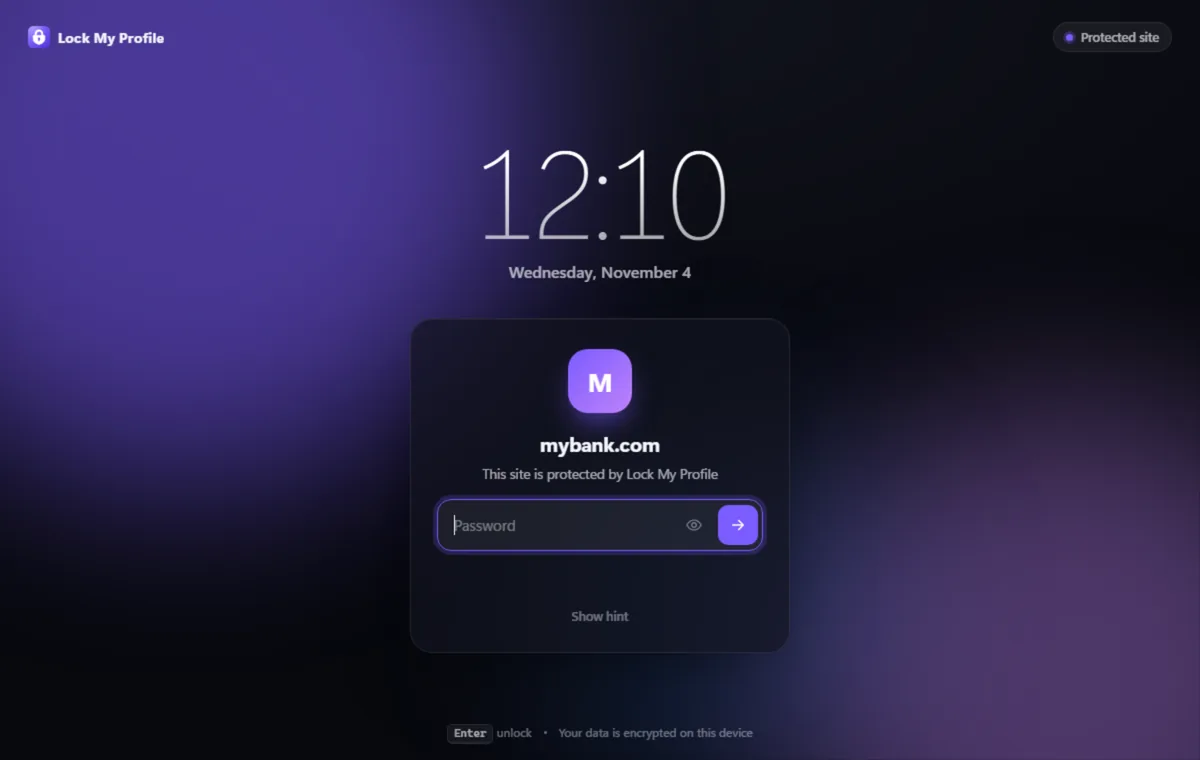
Hide that WhatsApp is even open
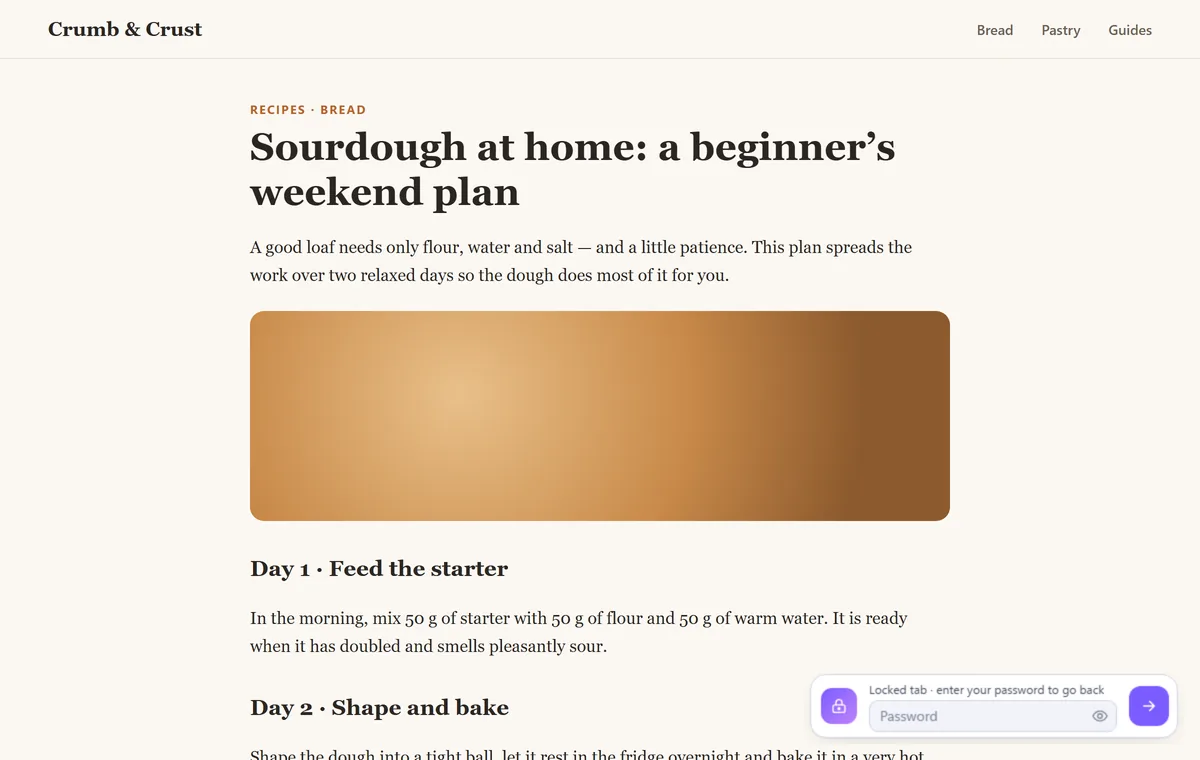
Turn on Camouflage protected tabs and choose Other site (real address). When you leave the WhatsApp tab, it’s swapped for a harmless page such as Wikipedia, and the address bar shows that site’s real address. Your WhatsApp tab waits in a minimized window; a small password bar on the page, or Ctrl+Shift+U, brings it back.
Think someone already read your chats?
- Open the Log in Lock My Profile to see failed password attempts with date and time.
- On your phone, open WhatsApp › Linked devices and log out of any computer you don’t recognise.